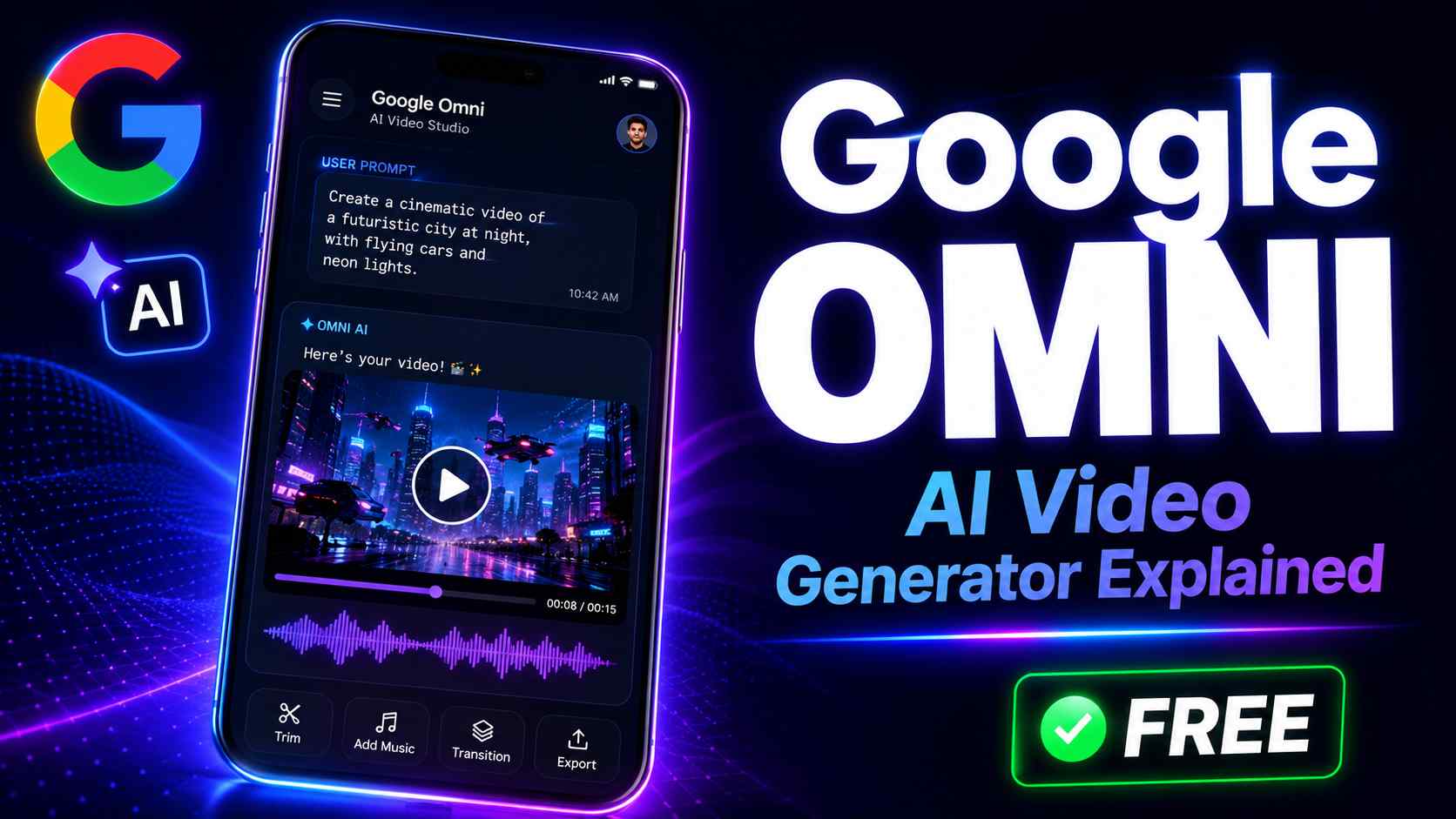
If you have spent any time on YouTube Shorts or the Gemini app lately, you have probably noticed a new option to “Create with Gemini Omni” that did not exist a few months ago. That is the Google Omni AI video generator — and it is one of the more genuinely useful AI launches of 2026, not because it does something nobody else has tried, but because of how it lets you edit a video afterward. Instead of regenerating an entire clip from scratch every time you want one small change, you can just tell it what to fix.
I have spent the last few weeks testing it across the Gemini app, Google Flow, and YouTube Shorts to understand what is actually free, what requires a subscription, and where it genuinely beats the alternatives most people are already using. This guide walks through exactly that — no marketing fluff, just what you need to know before you open the tool.
What Is Gemini Omni, and How Is It Different From Google’s Other AI Tools?
Gemini Omni is a new multimodal model from Google, designed to turn different forms of input into editable videos through natural language instructions. It was announced at Google I/O 2026 on May 19, and it marks a noticeably different approach compared to Google’s earlier video tool, Veo.
The core difference is in the name itself — “Omni” refers to the model’s ability to accept several types of input at once. Gemini Omni combines Gemini’s reasoning capabilities with generative tools to create video outputs from text, images, audio and video inputs. In practice, that means you are not limited to typing a single text prompt and hoping for the best. You can upload a reference photo, attach an existing clip, describe a tone in plain English, and Omni blends all of it into one output.
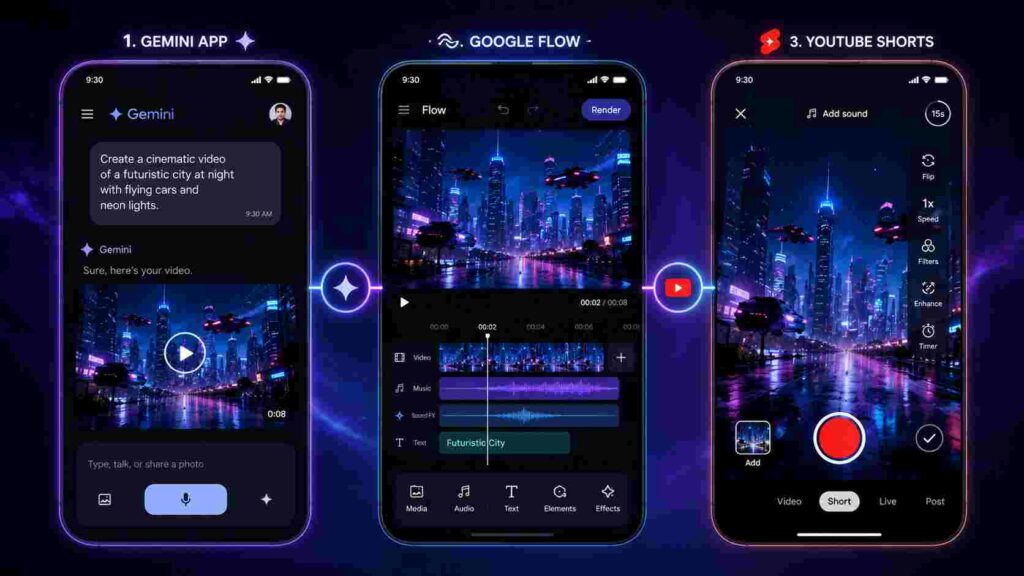
The first model in this family, called Gemini Omni Flash, is the version most people are actually using right now. It is rolling out through the Gemini app, Google Flow and YouTube Shorts, with Google planning to expand into additional output formats like standalone images and audio in the coming months.
Conversational Editing — The Feature That Actually Matters
The single biggest practical difference is editing by chat instead of by timeline. Gemini Omni is Google’s new AI model that generates and edits video from any mix of text, images, audio, or existing footage — all through natural conversation. If your first attempt has the right subject but the wrong lighting, you do not start over. You just say so, and the model treats it as a revision rather than a brand-new generation.This matters more than it sounds. Anyone who has used a typical AI video tool knows the frustration of getting 90% of a clip right and then burning five more generations trying to fix one small detail. Omni’s chat-based revision flow is specifically built to solve that.
Is the Google Omni AI Video Generator Free?
This is the question most people actually want answered, and the honest answer is: partly, depending on where you use it.
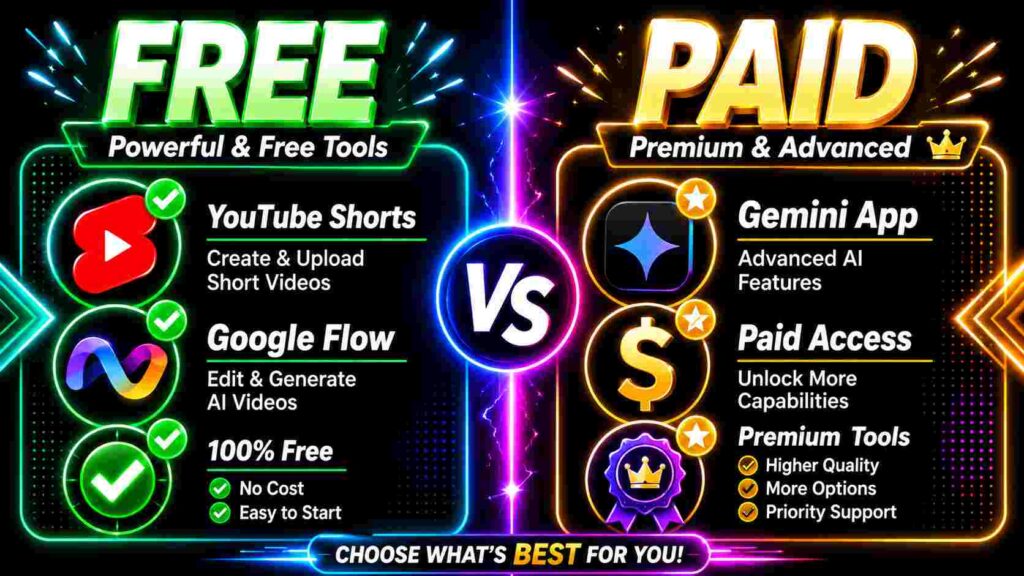
Gemini Omni Flash is free on Google Flow’s free tier, YouTube Shorts and YouTube Create, while the Gemini app needs Google AI Plus, Pro or Ultra. So your access really depends on which surface you open it from.
- Google Flow (free tier) — The free tier is available with any Google Account, no subscription, and includes Gemini Omni Flash, Nano Banana Pro and Veo 3.1, subject to usage limits.
- YouTube Shorts — Anyone with a Google account can use the Omni Flash generation features directly inside Shorts, with the same model and the same watermarking as everywhere else.
- YouTube Create app — This is a mobile-first editor with Gemini Omni Flash built in, and it requires no AI subscription.
- Standalone Gemini app — This surface requires a Google AI Plus, Pro, or Ultra plan, and is where Omni has effectively replaced the older Veo 3.1 model for video generation.
If you only want to experiment casually, YouTube Shorts is genuinely the easiest free entry point — no waiting list, no subscription page, just open the app and start a Remix. If you want the more flexible, project-based editing experience with saved assets and longer workflows, Google Flow’s free tier is the better starting point, though it comes with daily limits.
Google Omni AI Pricing — What You Get at Each Paid Tier
Once you move past the free entry points, pricing follows Google’s existing AI subscription structure rather than a separate “Omni fee.”
The Gemini app and Flow on the AI Plus plan unlock the full conversational editor for around $7.99 a month, which is genuinely one of the cheaper ways to access a serious AI video tool right now compared to most competing platforms. Higher tiers like AI Pro and AI Ultra do not unlock a more powerful version of the model — the underlying Omni Flash model is identical across every tier, from the free Shorts path to the most expensive Ultra plan. What changes as you move up is generation volume and credit limits, not output quality.
One thing worth flagging clearly: be cautious of third-party websites advertising paid “Omni Flash access.” Some of these are simply reselling access through Google’s free tier with added rate limits, which means you could be paying for something that is already free directly from Google.
Is There a More Powerful “Omni Pro” Version?
There is no officially announced “Omni Pro” tier with higher quality output — despite recurring rumors. Google has mentioned a more capable Gemini Omni Pro is planned for a future release, alongside image and audio output modalities, but as of now there is no public release date for it. If you see a tool claiming to offer “Omni Pro” today, treat that claim skeptically.
How to Use Google Omni AI Video Generator — Step by Step
The exact steps differ slightly depending on which surface you choose, but the underlying logic is the same everywhere.
Option 1 — Google Flow (Best for Structured Projects)
- Go to Google Flow and sign in with any Google account.
- Start a new project and check whether Gemini Omni Flash is showing as the active model — Flow also supports Veo 3.1, so confirm you have selected Omni specifically.
- Upload any reference images, audio, or existing footage you want the model to draw from.
- Describe the scene, action, and style in plain language. Be specific about camera movement, mood, and pacing — vague prompts tend to produce generic results.
- Review the output, then describe any change you want directly in chat rather than rewriting the whole prompt.
- Export once you are happy with the motion, audio sync, and overall framing.
Option 2 — YouTube Shorts (Fastest Free Option)
- Open the YouTube app and tap to create a new Short.
- Look for the Remix or AI creation option, then select Gemini Omni Flash if it appears as a tool.
- Enter your prompt or attach an existing clip you want remixed.
- Generate, preview, and publish directly — no separate export step is needed since you are already inside YouTube.
One technical detail worth knowing before you start: clips are capped at 10 seconds by design, not by a technical limitation. If you need a longer final video, plan to generate it in connected segments rather than expecting a single long clip from one prompt.
The Personal Avatar Feature — How It Works and Why the Extra Step Exists
One of the more talked-about features in Gemini Omni Flash is the personal AI avatar, which lets you create a video version of yourself that the model can place into generated scenes. Setting it up requires recording yourself reading numbers aloud first — which feels like an odd extra step until you understand the reason behind it.
That verification step exists specifically as Google’s built-in friction against deepfakes. By requiring a live voice and face recording tied to numbers (rather than allowing someone to simply upload a photo of another person), Google makes it significantly harder to create an avatar of someone without their direct participation. It is a small inconvenience in exchange for a meaningful safeguard, and it is worth appreciating rather than working around.
How Does Watermarking and Content Identification Work?
Every video produced through Gemini Omni includes an invisible identification layer. Every Omni-generated video carries an invisible SynthID watermark, which is part of Google’s broader effort to make AI-generated content traceable and identifiable at scale, even after the video has been downloaded, edited, or reposted elsewhere.
This matters if you plan to use Omni-generated clips for client work or commercial content. Most platforms are moving toward requiring AI-content disclosure, and a SynthID watermark means the origin of your video can be verified even if you forget to label it manually. If you are publishing AI-assisted content professionally, it is worth disclosing that upfront rather than relying solely on the watermark — both for transparency with your audience and to stay ahead of platform policy changes.
Google Omni vs Other AI Video Generators — Where It Actually Stands
Gemini Omni enters a genuinely crowded field. Google’s existing Veo 3.1 is already recognized as one of the best options for photorealistic, cinema-quality video with native audio and accurate physics, and Omni builds directly on that foundation rather than replacing it outright — independent analysis of the model’s metadata suggests the system extends Google’s existing Veo architecture rather than starting from scratch.
Compared to OpenAI’s Sora or Adobe Firefly — the two tools most commonly mentioned alongside it — Omni’s main advantage is not raw video quality but workflow. The conversational editing model and native integration with YouTube Shorts and Flow mean you can go from idea to published Short without leaving Google’s ecosystem. If your priority is the absolute highest possible cinematic fidelity for a long-form narrative project, a dedicated tool focused purely on quality may still be the better fit. If your priority is speed, iteration, and staying inside tools you likely already use, Omni currently has a real edge.
For readers comparing options side by side, a dedicated breakdown of AI video generators by use case and pricing would be a useful next read.
Is There an API for Developers?
Not yet, as of this writing. The developer API is still not live, with Google maintaining it is “coming in the coming weeks” via the Gemini API and Vertex AI, and no official pricing has been published for it. If you are building a product around Omni rather than using it directly, the most reliable approach right now is to test workflows manually inside the Gemini app or Flow, and watch Google’s official API changelog for the developer release.
Conclusion
The Google Omni AI video generator is a genuinely practical step forward, mainly because of how it lets you refine a video through conversation instead of regenerating it from scratch every time. If you just want to try it without spending anything, YouTube Shorts and the YouTube Create app are your easiest free entry points, while Google Flow’s free tier is better suited to slightly more structured projects. If you decide the workflow is worth paying for, the AI Plus plan at roughly $7.99 a month gives you the same underlying model as the most expensive tier — you are paying for usage volume, not extra quality.
Given how quickly Google has been shipping updates to this model family, it is worth checking the official Gemini and Flow pages directly before relying on pricing or feature details from any third-party source, including this one. If you are still deciding between Omni and other AI video tools for a specific project, a closer side-by-side comparison guide is the logical next step before committing to a subscription.
Related guides on this site:
Korean Baseball Broadcast AI Trend: Viral Prompts, Best Tools & Step-by-Step Video Tutorial (2026)
FAQs — Google Omni AI Video Trends website
Do I need a paid plan to try these viral Google Omni trends?
No. Most of these formats work fine on Google Flow’s free tier or directly inside YouTube Shorts. Complex multi-step formats like the storyboard build or long style-transfer sequences benefit from a paid plan’s higher credit limits, but they are not required to get started.
Why does my talking object video get cut off before the script finishes?
This usually happens when the script is too long for the clip length. Keep dialogue to two or three short sentences so the model has enough time to pace the mouth movement and timing naturally.
Can I use my own face for the avatar travel trend?
Yes. You will need to record a short verification clip first, which the model uses to save your face and voice as a reusable character. This step exists specifically to prevent someone from creating an avatar using your likeness without your direct participation.
Do these prompts only work with Google Omni, or can I use them elsewhere?
The prompt structures are largely model-agnostic. The camera, lighting, and style language described here works across most current AI video tools, though identity-consistency features like the saved avatar are specific to Google Omni’s setup.
What is the easiest trend to try first if I am completely new to AI video?
The before-and-after reveal format is the simplest starting point. It needs only one clear prompt, no reference upload, and no multi-step editing, making it the fastest way to get a usable result on your first attempt.